By Antonio Garcia Jan 19, 2024 6 min
Remote Data Access is a mandatory feature that needs to be present in any business software. Through the help of Remote Data Access it becomes easy for the companies to share their account-related details or other crucial information in a more safe and secure way. Remote Data Access is a cloud service offering various benefits to the users, like easy collaboration, management, and access to your account, thus automating the operations of the company. However, sometimes, while sharing company files, the Sage 50 Paused Sharing Feature crashes or stops. To handle this issue, here we have effective solutions to repair or enable the Paused Sharing Feature in Sage 50.
Sage Remote Data Access, formerly known as Sage Drive, is one highlighting feature of the Sage 50. The Remote Access feature of Sage is actually a cloud service that can be accessed by authorized company users even from a remote location. Data stored will be secure and easily accessible, thus eliminating any hindrance in the workflow, making remote access a highly utilized feature of Sage 50, especially for companies with employees situated in different locations.
The Remote Data Access allows easy sharing of company files across the network. Along with that users have the option to enable, pause, or stop the data sharing.
+1-844-341-4437
Under the Remote Data Access of Sage 50, users have the option to enable, disable, or temporarily pause file sharing. This pause feature can easily be located in the File menu of Sage 50. Open Sage 50, go to the File menu, and from the drop-down, select the option Pause Sharing. Along with Pause Sharing, users can find other options like Stop Sharing and Resume Sharing. Based on their preference and willingness, they can select the desired option.
If the users or the admin enable the option “Pause sharing,” the other users in the remote location will not be able to download the desired file.
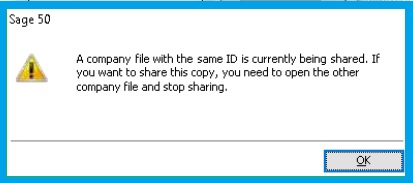
Various company file-sharing features like Pause Sharing, Resume Sharing, or Stop Sharing are the components of remote data access. Therefore, in case they are not working, the same troubleshooting can be done, which is helpful to fix common Remote Data Access issues in Sage 50. All these troubleshooting features are as follows:
Before you even proceed to share company files over Remote Data Access, we suggest you take the following preliminary measures:
Through these preliminary measures, you can avoid a variety of Remote Access issues, including the one where the Sage 50 Paused Sharing Feature or Resume Sharing Feature does not work.
This is a common error that users might face while using Remote Data Access in their Sage 50. A common resolution is that you check your internet connection and make sure you have a stable one with the minimum upload and download speed required by the Sage 50 application to share company files.
Compatibility issues can be there when you don’t have an updated version. For this, you need to check first the current version number of your Sage 50. For that, you need to:
+44-800-810-1881
Obstruction from a security application can be the reason why Remote Data Access is not working properly. To fix that, you need to temporarily disable other security applications including the Firewall. This can be done from the Control Panel. Along with that, you need to remove the following URLs from the proxy server:
Here “XX” is the version number of the Sage you are using.
This is the most common error in Sage 50, with the following message being displayed on the screen:
An Error has occurred with your Sage ID. You are not able to connect using Remote Data Access this Time.” Due to this error Remote Access is hindered, affecting various features like Sage 50 Paused Sharing feature and many others.
Common Causes of this Error are:
The following measures can be taken to fix errors.
For this, you need Sage 50 Account and Sage 50 Account Control Services. For that, follow the given steps:
In case you have added the New Mail Address to your Sage Account and you are a data owner, then you need to follow the given steps:
All the Steps and Processes are Available in Details Below.

In Sage 50, open account settings, select user management, and then hit the option “Users.”
Locate the Manager User Name, after which you need to enter Edit. Clear the checkbox mark for “Allow Remote Remote Data Access” and then save the given changes.
Once you have followed the given steps, you need to do the following:
While the above-given measures can be helpful in fixing Remote Data Access, through some basic troubleshooting, you can easily avoid the occurrence of any error in Data sharing while using Sage 50:
While sharing Company File or any other data on Remote Access, you need to keep the following things in Mind:
Remote Data Access is an excellent utility in the cloud services through which users can store and share their company data more securely. While it is an easy and quick process, due to some technical glitches, various features of Remote Access like Paused Sharing, Resume Sharing, and many others do not work. However, through some basic troubleshooting, these issues can be easily fixed. In case if the issue still persists, then you can connect with Sage 50 Support Phone Number, where our experts are available 24/7 to help you with any error or query you have while using Sage Business Software.
+1-844-341-4437
What is Sage Remote Data Access?
Sage Drive or Remote Data Access is a cloud feature that offers the utility to store and share company file data over the network, thus making it accessible to someone in a remote location.
Can I Pause or Stop File Sharing in Remote Data Access?
Users can easily pause or stop file sharing on Remote Access by going to the File option, selecting Remote Access, and then clicking on the option “Pause/Stop” file sharing.
How do you fix remote data access in Sage 50?
Through some basic Troubleshooting, common issues in Remote Access can be easily fixed.
Basic Troubleshooting steps include:
How do you share the company file on Sage 50?
Go to the File option, hit Remote Data Access, and then click on “Share a Company.” Select “Remote Data Access” from the list of apps and Info, and then follow the further instructions to start uploading or downloading the desired company file.
How do you remove Sage 50 Remote Data Access for any company in Sage 50?
You need to remove the company from the Remote Data Access in your Sage 50.
For that, you can follow the given steps:

Jun 01, 2026
Jun 01, 2026
Jun 01, 2026
May 22, 2026
May 12, 2026
© Copyright 2026 Sage Online Solution | All Rights Reserved
US
UK

