By Antonio Garcia Mar 13, 2026 8 min
Sage 50 is a versatile accounting software, known for its powerful features and tools. However, as your business grows, your basic needs also grow. At such times, you also think how do I download Sage 50 on another computer without losing my important financial data? Whether you are upgrading to a high-performance software to manage your increased workloads or simply replacing an old one.
This blog will walk you through the essential pre-checks and downloading process, ensuring your software transition is handled correctly.
For expert assistance to learn how to download Sage 50 on another system, dial +1-844-341-4437 and get a quick solution.
Moving Sage 50 to a new computer is essential for unlocking the new features and services of Sage. By migrating properly, you maintain a seamless audit trail and avoid the data corruption or lag associated with old systems, keeping your financial records accessible and protected.
Before you start the procedure, you must ensure that your system is compatible with this new update:
Pre-Installation Checklist – What You Will Need?
Before moving to a new computer, you must capture your current credentials to ensure the license transfer is seamless.
• Serial Number
• Activation Key
• Account Number
Step 1: Verify The Basic System Requirements Of Sage 50
Before understanding how to download Sage 50 to a new computer, compare your system to see if it is compatible with the new changes. Using a machine that only meets the Minimum often leads to slow reporting and database timeouts. Look at the core hardware requirements below:
|
Component |
Minimum Requirement |
Recommended |
|
Processor |
2.0 GHz for single core |
2.4 GHz is recommended for Quad-Core |
|
RAM |
4 GB RAM is required for single user |
16 GB is recommended for Multi-User |
|
Hard Drive |
You must need 5 GB Free Space |
SSD with 10 GB+ Free Space |
|
Display |
1024 x 768 Resolution |
1280 x 800 or Higher |
Step 2: Back Up Your Data From The Old Computer
It’s essential to create a verified backup before transitioning to your new workstation. This ensures that you aren’t just moving files, but moving healthy, uncorrupted data. Here’s how to take a backup:
Step 3: Download And Install Sage 50 On Your New Computer
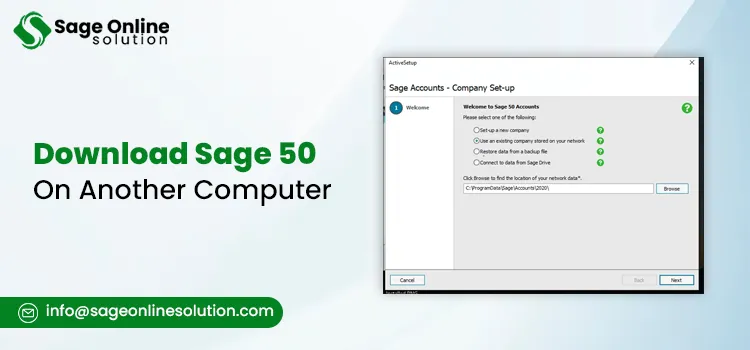
For a hassle-free installation, must logged into the new PC as an Administrator rights. This prevents permission errors that can block Sage database engines from starting. Look at the below given steps:
Step 4: Migrate The Backup Data To The New Computer
Now that you have understood how to download Sage 50 on another computer, it’s time to restore the company data. Sage 50 offers two paths, depending on whether you sync via the cloud or use a manual backup. Perform the steps below:
◦ If you use Remote Data Access v28, click Download and follow the prompts to sign in with your Sage ID. By this, the company data will automatically sync.
◦ If you are moving data via USB or a shared drive, click Restore and proceed to the steps below.
Step 5. Activate Sage 50 On A New Computer
After successfully downloading and migrating the data to another computer, activate Sage 50. Follow these steps to link your license to the new computer:
By migrating Sage 50 accounting software to a new computer you maintain the business continuity and data security. Here are the most essential scenarios where you need to download your Sage 50 to another computer:
Moving Sage 50 to a new computer keeps your business running smoothly, safe, and up to date with 2026 regulations. By following these steps to move your data, you avoid downtime and keep everything secure, whether you’ve upgraded your hardware or are setting up for remote work. It’s a recommendation, before you start, verify the version and license availability.
If you’ve been wondering, how to download Sage 50 on another computer, simply follow this guide to secure your installer, activate your software, and restore your company files. Get reliable support, call +1-844-341-4437 now.
You May Also Read:
Frequently Asked Questions
Yes, you can download Sage 50 on multiple computers with the same license as Sage provides a same-user or multi-user environment.
You can download the installer directly from the official Sage website by using the existing license information.
You may face the Sage 50 serial number not working due to version mismatch like if you are using the older serial number in the new system. Moreover, ensure there are no extra spaces in the field.
No, you will not lose your business data while moving Sage 50 to the new computer. Before starting migration you should create a verified backup for ensuring zero data loss. Once done, restore your data on the new computer.
You can use the USB drive to transfer your data, but you are unable to run Sage 50 software directly from the USB drive. You must run the official installer on the new computer’s local drive to set up the necessary database engines that allow Sage 50 to function correctly.

Mar 13, 2026
Mar 13, 2026
Mar 10, 2026
Mar 10, 2026
Mar 10, 2026
© Copyright 2026 Sage Online Solution | All Rights Reserved
US
UK

