By Antonio Garcia Jan 10, 2024 16 min
Bank reconciliation is one of the most essential accounting tasks for any business using Sage 50 bank reconciliation features. In simple terms, it’s the process of matching your company’s recorded cash transactions with your real bank statement to confirm that your books truly reflect what your bank says. Without a clean reconciliation, you risk cash misstatements, hidden errors, and compliance gaps.
This guide breaks down every part of bank reconciliation in Sage 50, from setup to troubleshooting, so you understand it thoroughly and avoid costly mistakes. In any case of Sage 50 bank reconciliation discrepancy dial +1-844-341-4437 for professional help from experienced Sage 50 specialists.
Sage 50 bank reconciliation is mainly an accounting function in Sage 50 that permits businesses to reconcile their cash records with the actual bank statements. The aim is straightforward but very important, and that is to ensure that all deposits, withdrawals, charges, and adjustments reflected in Sage 50 are accurate compared to what the bank has processed.
In bank reconciliation in Sage 50, transactions are not automatically considered final. Each payment, receipt, or charge is considered “uncleared” until you manually match it against your bank statement. Once matched and posted, these transactions are locked, which helps to ensure the integrity of your financial records.
At a high level, Sage 50 bank reconciliation ensures:
Sage 50 compares two balances during reconciliation:
The reconciliation can only take place once the discrepancy is 0, meaning the two balances are the same. Without this, Sage 50 will point out the discrepancy, which must be cleared before going further. Not only is this a best business practice, but it is literally required by accounting principles to prevent error, fraud, and misrepresentation.
To use Sage 50 bank reconciliation properly, it’s important to understand how the system processes and controls bank data internally. Sage 50 does not automatically assume your books match your bank. Instead, it requires a manual confirmation process that validates each transaction.
In bank reconciliation in Sage 50, every transaction that is posted to a bank account carries a reconciliation status. When transactions such as checks, deposits, EFTs, or withdrawals are first entered, they are marked as uncleared. During reconciliation, you compare these entries to your bank statement and manually mark only the matching transactions as cleared.
Behind the scenes, Sage 50 performs the following actions:
Once a reconciliation is posted:
Sage 50 also collects and stores reconciliation history, which is crucial for audits, reviews, and troubleshooting past discrepancies.
Major Reconciliation Elements In Sage 50
|
Element |
Description |
Impact On Accounting |
|---|---|---|
|
Cleared Transaction |
Transaction matched to bank statement |
Locks entry and confirms accuracy |
|
Uncleared Transaction |
Pending or unmatched entry |
Remains open for future reconciliation |
|
Reconciliation Date |
Statement ending date used |
Controls which transactions are included |
|
Book Balance |
Cash balance in Sage 50 |
Basis for comparison |
|
Bank Statement Balance |
Ending balance from bank |
Target balance to match |
|
Posted Reconciliation |
Finalized reconciliation |
Updates reports and locks data |
This internal structure ensures accuracy, consistency, and protection against unauthorized or accidental changes to reconciled cash data.
Before you can successfully perform Sage 50 bank reconciliation, the bank account must be configured correctly. Improper setup is one of the most common reasons users later encounter discrepancies, unresolved amounts, or failed reconciliations. Setting it up right from the start prevents most downstream issues.
If you’re enabling reconciliation for the first time, the entire process of “how to set up bank reconciliation in Sage 50” involves more than just turning on a feature. It requires confirming balances, dates, and account links.
Obligations To Look For Before You Start With The Setup
Make sure the following requirements are met:
Step-By-Step Procedure For Setting Up The Setup
Follow these steps carefully when learning how to set up bank reconciliation in Sage 50:
Once completed, Sage 50 enables reconciliation tracking for that account going forward.
Some Important Notes While You Perform The First-Time Setup
Whether you’re setting up bank reconciliation for the first time, handling multiple accounts, or migrating from another system, expert help can save you hours of frustration. So to avoid any Sage 50 bank reconciliation fail dial +1-844-341-4437.
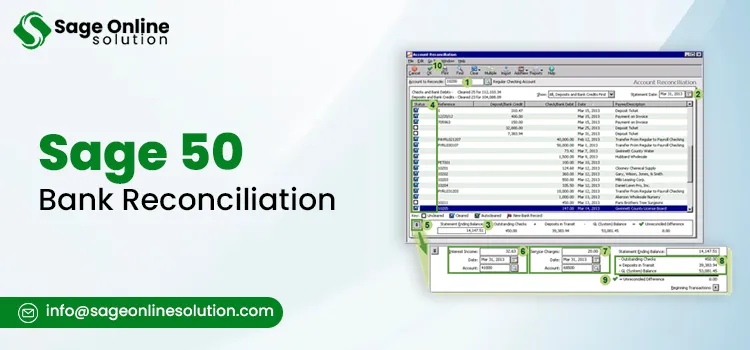
Once setup is complete, the next critical task is performing the actual reconciliation. Understanding how to do bank reconciliation in Sage 50 correctly ensures your cash records stay accurate and your financial reports remain reliable. This process must be done carefully because posting a reconciliation locks transactions and affects future periods.
Whether you’re learning how to do bank reconciliation on Sage 50 for the first time or refining your process, the steps below follow the official workflow.
Step-By-Step Process To Reconcile A Bank Account
Follow these steps exactly when learning how to do a bank reconciliation in Sage 50:
When the difference is zero, Sage 50 allows the reconciliation to be posted. If not, the reconciliation cannot be finalized.
Types Of Transactions You’ll Reconcile
|
Transaction Type |
How Sage 50 Treats It? |
Common Issues |
|---|---|---|
|
Checks |
Cleared manually |
Wrong dates or amounts |
|
Deposits |
Cleared manually |
Duplicate entries |
|
Electronic Payments |
Cleared manually |
Missing transactions |
|
Bank Fees |
Entered as adjustments |
Often overlooked |
|
Interest Earned |
Entered as adjustments |
Incorrect posting |
Some Important Pointers To Keep In Mind
If you’re unsure at the posting stage or dealing with complex adjustments, getting expert guidance can prevent costly mistakes, so contact our Sage 50 Bank Reconciliation experts +1-844-341-4437.
Understanding Adjustments, Differences, And Unresolved Amounts
Even if you are doing everything right, there may still be a difference that will not allow posting when it comes to Sage 50 bank reconciliation. This is where adjustments and unresolved amounts come in. It is very important to understand these concepts if you want to do the reconciliation correctly.
When Sage 50 displays a message indicating “Sage 50 bank reconciliation adjustment required”, it means the book balance and bank statement balance do not match based on the transactions you’ve cleared. Sage 50 will not allow posting unless the difference equals zero.
What Does “Adjustment Required” Mean?
“Sage 50 bank reconciliation adjustment required” message typically appears when:
Adjustments should only be used for legitimate bank-side entries, not to “force” a reconciliation to balance.
Basic Understanding Of Unresolved Amounts
Sage 50 bank reconciliation unresolved amount indicates the remaining difference between your cleared transactions and the bank statement balance. This amount indicates that something is still missing, duplicated, or incorrectly entered.
Common causes of Sage 50 bank reconciliation unresolved amount include:
How To Resolve Differences Properly?
Common Difference Scenarios And Fixes
|
Issue |
Likely Cause |
Correct Action |
|---|---|---|
|
Small recurring difference |
Missing bank fees |
Enter adjustment |
|
Large one-time difference |
Missing deposit |
Record deposit |
|
Random imbalance |
Duplicate entry |
Remove duplicate |
|
Ongoing issues |
Setup error |
Review opening balance |
Accurately resolving adjustments and unresolved amounts protects your cash records and prevents future reconciliation problems.
Sage 50 bank reconciliation discrepancy occurs when the balance in Sage 50 does not match the ending balance on your bank statement, even after clearing all visible transactions.
Understanding the root cause of Sage 50 bank reconciliation discrepancy is essential before attempting any fixes.
Most Common Causes Of Reconciliation Discrepancies
The big issues that often cause inconsistencies in Sage 50 bank reconciliation are:
How To Identify Discrepancies Faster?
Why Discrepancies Keep Reoccurring?
Errors when re-occurring are generally a sign of a structural issue, which may be caused by the improper setup of the opening balance, or some other mentioned reason. It is crucial to address these issues early to ensure a smooth reconciliation process.
A failed reconciliation can stop your month-end closure. When Sage 50 bank reconciliation fail situations occur, the system prevents you from posting the reconciliation because the required conditions have not been met. Understanding why this happens helps you fix the issue correctly instead of guessing.
Sage 50 bank reconciliation fail message usually appears when Sage 50 detects inconsistencies between cleared transactions and the bank statement balance.
What Sage 50 Does During a Failed Reconciliation?
When reconciliation fails:
This is one protective behaviour that prevents inaccurate cash balances from being recorded in financial statements.
How To Fix A Failed Reconciliation?
If reconciliation failures keep on happening again and again, it is usually pointing to deeper data or setup issues that need professional review.
Although Sage 50 bank reconciliation is a stable process, sometimes users face crashes or issues during the process. It is critical to understand the causes and preventive measures to make sure that the process keeps on running smoothly.
Sage 50 bank reconciliation crashes scenario usually happens when the software encounters unexpected data, large transaction volumes, or system conflicts. These crashes can lead to lost progress or, in rare cases, corrupted data if not handled carefully.
How To Prevent Reconciliation Crashes?
What To Do If A Crash Occurs?
For technical troubleshooting and expert support to prevent Sage 50 bank reconciliation crashes, contact our certified Sage 50 professionals by calling +1-844-341-4437.
Sometimes, when Sage 50 bank reconciliation is completed, you may realize that an error was made, such as clearing the wrong transactions or maybe entering an adjustment that might be incorrect. In such scenarios, knowing how to undo a bank reconciliation in Sage 50, how to reverse a bank reconciliation in Sage 50, or how to reset bank reconciliation in Sage 50 is crucial.
Undo vs Reverse vs Reset: Key Differences
|
Action |
Purpose |
When To Use |
Impact |
|---|---|---|---|
|
Undo |
Remove a reconciliation from a specific period |
Mistake found immediately after posting |
Transactions become uncleared; no permanent changes |
|
Reverse |
Reconcile and then create a reversing entry |
To correct posted reconciliations in prior periods |
Maintains audit trail; creates offsetting entries |
|
Reset |
Clear reconciliation history to start fresh |
After major errors or system migration |
Deletes previous reconciliations; use with caution |
Note: Undoing a reconciliation is only possible if transactions have not been edited after they have been posted. Always check for locked periods before proceeding.
Some Important Tips To Consider:
If you are unsure about undoing, reversing, or resetting your reconciliations, our certified Sage 50 experts can guide you safely. Contact us now at +1-844-341-4437 for professional assistance.
Mastering Sage 50 bank reconciliation is essential to maintaining accurate cash balances, credible financial reporting, and effective internal controls. Whether you are implementing reconciliation, fixing issues related to unresolved amounts or discrepancies, reversing a reconciliation, or dealing with system crashes, knowledge of the process and common issues will enable you to maintain your accounts in balance.
Regular and systematic reconciliation not only helps you detect discrepancies and fraud but also helps you build confidence in your accounting records. If you are dealing with difficult reconciliation issues or require personalized help, our Sage 50 professionals are there to assist you. Contact us +1-844-341-4437.
You May Also Read:
Frequently Asked Questions
An unresolved amount generally indicates that there is still a difference between the book balance and the bank statement balance as perceived by Sage 50, even though all the transactions seem to be balanced. This could be a result of unrecorded adjustments, such as bank charges or interest, or could be a result of entries being made in the wrong accounting period.
Yes, it is permitted but only for the most recent reconciliation period, and reversing may be needed for older periods where undoing isn’t available. While, reversing maintains the audit trails by creating offsetting entries, but care should be taken not to impact prior financial periods.
Sage 50 bank reconciliation discrepancy usually stems from transactions dated incorrectly, duplicate entries, or adjustments entered after a prior reconciliation. In some cases, reconciling prior periods out of sequence or altering prior reconciled transactions can cause mismatches that show up as a discrepancy.
Reconciliation posting fails when the system still sees an imbalance between the book and bank statement balances, even if they appear equal. This might happen when entries are recorded to the wrong account or a beginning balance issue exists. Sage 50 disables posting to prevent inaccurate cash balances from being recorded.
This is normally the case when there was a reconciled transaction that was changed after the posting process. Sage 50 will then consider it as outstanding, resulting in discrepancies. It is not recommended to change reconciled transactions, and corrections should be done through journal entries. In some cases, it may be necessary to reset the reconciliation.

Mar 13, 2026
Mar 13, 2026
Mar 10, 2026
Mar 10, 2026
Mar 10, 2026
© Copyright 2026 Sage Online Solution | All Rights Reserved
US
UK

