By Antonio Garcia Mar 20, 2025 6 min
Sage 50 Accounts is one of the Sage products or advanced accounting software with cloud connectivity that lets you manage your business’s accounting and finances. With its additional features, the software allows you to run a successful company, and gives you a complete view of your business’s finances and inventory.
You can get real-time information on your business processes and save time and effort in everyday tasks. Put the software’s powerful tools on your desktop and take your work with you, thanks to online access and collaboration.
Now, you can work from anywhere and connect with anyone while spending minimal time on admin tasks. This article is a complete guide for Sage 50 accounts setup both on workstation and network; let’s get started.
Sage 50 Accounts is an advanced accounting software with cloud accounting access that covers essential needs such as invoicing, managing income, expenses, and even payments.
The software offers different subscriptions, such as Pro Accounting, Premium Accounting, Quantum Accounting, HR and Payroll Bundles. You can opt for one of them depending on your needs. You can enjoy the seamless collaboration between larger accounting teams.
It lets you save your time and effort with everyday tasks. Access such powerful tools on your software and take your work along with you using the cloud or online access and collaboration.
Before proceeding for Sage 50 Accounts Download, you must ensure to meet system requirements by Sage. The software has certain specifications that must be met to ensure the program runs smoothly, without interruptions, sudden crashes, freezing, and other problems.
Review the requirements below and make sure your system meets them for a better user experience with Sage.
The following Microsoft Windows operating systems in both 32-bit and 64-bit versions:
To enjoy business management with Sage 50 Accounts, make sure your computer has the below specifications.
a. RAM
You will requires at least of 2 gigabytes (GB) or 4GB RAM if you’re running a 64-bit operating system.
b. Disk space
Must have the 5GB of free disk space.
c. Processor
The 2Ghz of faster x86 or x64 processor is needed for Sage 50 Accounts to work.
d. Microsoft .NET
Sage 50 Accounts will automatically download .NET 4.7.2 or higher if your system doesn’t have it.
Internet Connection: Keep your computer connected to the broadband connection.
Internet Speed: We recommend a minimum download speed of 4 Mbps and an upload speed of 2 Mbps if you’re using Remote Data Access.
If you are hosting Sage 50 on the network, you will have at least a 100Mbps connection to share data over a network.
Sage 50 works best with Microsoft office in some ways such as emailing documents and sending reports to Excel.
Read the display settings below and ensure your system meets the requirements for better display functioning.
a. DPI Setting
Maximum of 125%.
b. Screen Resolution
The screen resolution needs to be between 1024 x 768 and 1920 x 1080, which applies to 4k and high-res monitors.
Sage 50 Accounts is a comprehensive solution for all your accounting, financial, inventory management and other business needs. You can automate these tasks, and the software also allows you to schedule the payroll, payments, invoicing and much more.
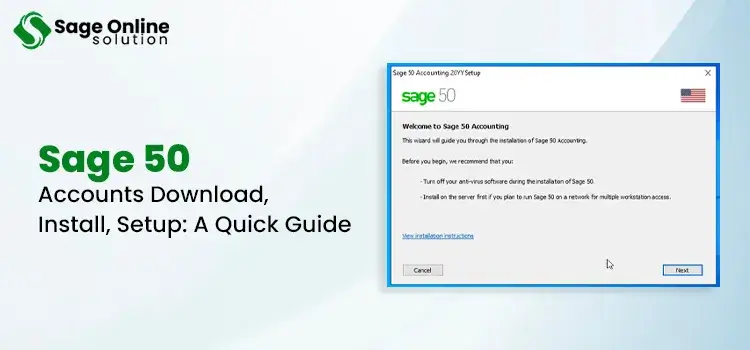
So, review the below steps to perform the Sage 50 Accounts download and installation in the latest version. Be sure to perform the instructions carefully or connect with professionals if assistance is needed.
Note: The higher version of Sage 50 Accounts is also available; you may prefer the most recent version when downloading the program file above.
The following steps only work for the US edition to Sage 50 Accounts download and install the software on the network. If your province is different, it is recommended that you do not proceed with the instructions below.
Note: It is recommended installing the software path at C:\Program Files (x86)\Sage\Peachtree.
When you update the program on server, you will typically prompts to update Sage 50 on the workstation too. If missed the prompt, consider updating the program manually.
Now, let’s get the Sage 50 Accounts download on your connected/workstation computer:
After the Sage 50 Accounts Download, creating a company file is necessary to ensure your data is placed in the same and is safe and protected. Connecting different computers with the company file is also recommended if you host the company file.
Proceed with the steps below to create a company file on your main computer and connect it to workstations if you are hosting.
Create a company from scratch
You can also get the software in different locations after creating a company file to save your data for the installed software.
Proceed with the below steps to connect the company file created above to another computer over the network:
Before getting started gather all the information you will to connect your data:
Note: If you open Sage 50 accounts for the first time, you must enter the serial number, activation key and, if required, your account number.
Important Note: If your company file is outdated, you will be prompted to update it. Or click File> New> Company if you want to create a new company.
Advanced business management software can save you time, manual effort, and the cost of hiring a large team. With advanced AI-integrated features, Sage 50 accounting software helps you manage your business accounting and finances. You can manage inventory, invoicing, reporting, and more with a click.
Hopefully, this guide has helped you in the Sage 50 Accounts setup process to get started with the software. If you need further assistance, dial +1(844)341-4437 to contact a professional and consult about your problems.

Jun 01, 2026
Jun 01, 2026
Jun 01, 2026
May 22, 2026
May 12, 2026
© Copyright 2026 Sage Online Solution | All Rights Reserved
US
UK

