By Antonio Garcia Jan 05, 2026 6 min
Sage 50 .NET Framework Error 1026 is basically an issue that occurs when the .NET Framework, which is a very important component for many applications, encounters a problem.
If you are encountering this, it usually indicates that the software cannot communicate with the Windows OS. This specific Sage 50 .Net Framework 1026 Error is often tied to corrupted dependencies or missing updates.
This error usually appears when trying to run or install Sage 50, and it can block the software from functioning correctly. When the error pops up, it usually indicates that the .NET Framework is either corrupted, missing, or is not compatible with the version of Sage 50 that is currently in use.
Error Message:
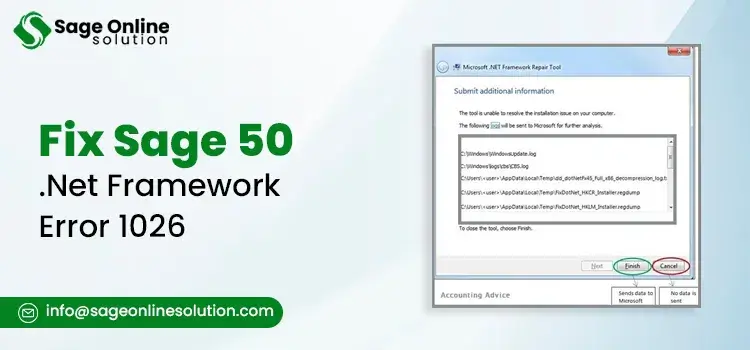
The error message often looks like this:
This error can come during installation, startup, or even while using certain features of Sage 50. It’s very common after installing a new version of Sage 50 or even after updating the .NET Framework.
The .NET Framework plays an important role in the usage of Sage 50. It primarily enables the software to run in a smooth manner by providing necessary support for applications, web services, and also for the other core functionalities. If the .NET Framework is corrupt, it can lead to unexpected crashes, data loss, and also some of the other issues within Sage 50.
This is why solving this Sage 50 .NET Framework Error 1026 is critical for users to maintain uninterrupted access to all of their financial records.
Before trying to fix the issue, it’s important to understand why it occurs. This error does not appear randomly. In most cases, it is triggered by specific problems related to Windows, Microsoft .NET Framework, or Sage 50 application itself. The causes listed below are based on common real-world troubleshooting scenarios and compatibility requirements.
1. Corrupted Installation Of Microsoft .NET Framework
This is one of the most common root causes.
Sage 50 relies heavily on Microsoft .NET Framework to function properly. If the framework files are damaged or incomplete, the software cannot communicate correctly with Windows.
Corruption can occur due to:
When this happens, Windows may fail to load required .NET components, resulting in Sage 50 .Net Framework 1026 Error during startup or installation.
2. Unsupported Version Of Microsoft .NET Framework
Sage 50 requires specific versions of the Microsoft .NET Framework in order to work correctly. For instance, Sage 50 2023 and 2024 versions typically require Microsoft .NET Framework 4.8. If your system is forced to run on an older version, Sage 50 .Net Framework 1026 Error will persist despite repeated restarts. And also if your system is running on or has:
You may encounter Sage 50 .net framework error messages, including error 1026.
This issue is very common after:
Microsoft officially states that applications built on .NET require compatible framework versions, and Sage confirms this requirement in their system compatibility guides.
3. Incomplete Installation Of Sage 50
If Sage 50 is not installed correctly, required .NET components may not register properly.
This usually happens when:
An incomplete installation often leads to runtime issues and launch failures.
4. Windows System Files That Are Damaged
Windows system files play an important role in how applications interact with Microsoft .NET Framework.
If important system files are corrupted, missing, or altered, Sage 50 may not be able to access .NET services correctly, resulting in Sage 50 .Net Framework Error issues.
Common causes include:
5. Antivirus Or Firewall Blocking Sage 50 Or .Net Components
Security software may occasionally block safe programs by mistake.
Some antivirus or firewall applications may:
When this occurs, Sage 50 cannot access required .NET resources, leading to Sage 50 .Net Framework 1026 Error on launch.
6. Windows Failed Or Pending Updates
Sage 50 depends on Windows updates to maintain compatibility with Microsoft .NET Framework.
If:
Essential .NET components may not function as expected, which can trigger Sage 50 .Net Framework 1026 Error.
7. Conflicts With Other Installed Applications
In some cases, the third-party applications that are installed on the system may interfere with Microsoft .Net Framework.
This may include:
Such conflicts can disrupt .Net services and cause Sage 50 .Net Framework Error problems when launching Sage 50.
8. Running Sage 50 Without Administrative Permissions
Sage 50 needs appropriate permissions to access Windows services and the .NET components.
If the program is launched without any of the administrator rights:
This can directly lead to Sage 50 .Net Framework 1026 Error, especially on newer Windows versions.
9. Issues After Upgrading Windows Or System Migration
Windows upgrades or system migrations can disrupt:
If Sage 50 is not reconfigured after such changes, compatibility issues may arise and trigger Sage 50 .Net Framework 1026 Error.
Why Understanding The Cause Matters?
Understanding the ‘why’ behind Sage 50 .Net Framework Error 1026 is vital. If the error is caused by a firewall, reinstalling the software won’t help. Use the causes listed above to diagnose whether your issue is a permission conflict, a Windows update failure, or a corrupted .NET installation.
Identifying the root cause is the only way to permanently clear this error from your system.
If you’re facing Sage 50 .net framework error 1026, the good news is that this issue is fixable in most cases. The key is to follow each solution carefully and in order. Every solution below is verified and each step is written in plain, easy to follow language.
Even if a step looks simple, do not skip it. Many users resolve the error just by following basic steps correctly.
Before You Begin To Troubleshoot: To resolve Sage 50 .Net Framework Error, ensure you have logged into Windows as a user with full administrative rights. Most .NET-related fixes require deep system access that standard user profiles cannot provide.
Solution 1: Restart Your Computer
This may sound too simple, but restarting your system actually clears temporary memory issues and reloads Windows services which also includes the Microsoft .NET Framework services.
Steps:
Solution 2: Running Sage 50 As An Administrator
Running Sage 50 without giving it proper permissions can trigger Sage 50 .net framework error.
Steps:
If Sage 50 now opens without the error, this confirms it was a permission issue.
Solution 3: Fix Sage 50 .NET Framework 1026 Error via Repair Tool
A corrupted .NET Framework file is one of the leading causes of sage 50 .net framework error 1026.
Below Are The Steps To Repair .NET Framework:
Microsoft officially recommends repairing .NET Framework before reinstalling it.
Solution 4: Reinstall Microsoft .NET Framework
If the option of repairing doesn’t work, reinstalling the .NET Framework is the next thing that becomes necessary to fix Sage 50 .net framework error 1026. As, when a repair fails, a clean install is required to prevent the Sage 50 .Net Framework 1026 Error.
Important: Do not uninstall versions required by Windows unless prompted.
Steps:
This method is also officially suggested by Sage when facing persistent Sage 50 .net framework error problems.
Solution 5: Install All Pending Windows Updates
Microsoft often releases patches specifically to fix Sage 50 .Net Framework Error through the standard Windows Update utility.
Steps:
Solution 6: Disable Antivirus And Firewall Temporarily
Some security programs block .NET Framework services.
Steps To Disable Temporarily:
This step is also very commonly suggested in all of the Sage troubleshooting guides that relate to Sage 50 .net framework error 1026.
Solution 7: Running System File Checker
System File Checker repairs corrupted Windows files that affect .NET Framework.
Steps:
Microsoft officially confirms SFC fixes system-related .NET errors.
Solution 8: Reinstallation Sage 50
If no solutions fix the Sage 50 .net framework error 1026, then reinstall Sage 50.
Steps:
Solution 9: Create A New Windows User Profile
Corrupt user profiles can cause Sage 50 .net framework error issues.
Steps:
Each solution addresses a verified cause tied to Sage 50 .net framework error 1026. Microsoft and Sage both emphasize fixing .NET, Windows files, permissions, and compatibility issues.
Once the issue is resolved, the next step is to ensure it does not occur again. In many real-world cases, users experience repeat problems because essential system maintenance steps are skipped. The preventive measures below focus on keeping Windows, Microsoft .NET Framework, and Sage 50 stable and compatible over time.
1. Always Keep Windows Updated
Windows updates regularly include:
Skipping updates can eventually lead to Sage 50 .net framework error issues due to compatibility gaps.
Best Practice:
Keeping Windows updated helps ensure .NET Framework components remain fully compatible with Sage 50.
2. Use Only Supported Versions Of Microsoft .NET Framework
Sage 50 is tested and certified only with specific versions of Microsoft .NET Framework.
What To Do:
Using unsupported framework versions is a well-known cause of Sage 50 .net framework 1026 error after upgrades or system changes.
3. Always Install Sage 50 As An Administrator
Providing proper permissions during installation plays a critical role in preventing runtime issues.
Correct Installation Method:
This ensures proper .NET registration and significantly reduces the risk of installation-related errors.
4. Add Sage 50 To Antivirus And Firewall Exceptions
Security software may occasionally block safe applications by mistake, especially after updates.
Prevention Steps:
This step alone prevents many cases where Sage 50 .net framework error appears unexpectedly.
5. Avoid Forced Shutdowns And Power Interruptions
Unexpected shutdowns can corrupt:
Using a UPS is strongly recommended on systems running Sage 50, particularly in business environments.
6. Perform Regular System Maintenance
Well-maintained systems are far less likely to encounter Sage 50 .net framework 1026 error problems.
Recommended Maintenance Tasks:
These tasks help maintain overall system stability.
7. Reboot The System Regularly
Leaving systems running for long periods without restarting can cause background service failures.
A simple weekly restart refreshes:
This reduces the chances of errors appearing without warning.
8. Test Sage 50 After Major Updates
After:
Always open Sage 50 and confirm it launches properly. Early detection helps prevent larger issues.
These tips are not mandatory but highly recommended to avoid repeated Sage 50 .net framework error problems.
1. Keep Regular Backups
2. Avoid Third-Party System Cleaners
3. Document System Changes
Dealing with Sage 50 .net framework error 1026 can feel very frustrating, especially when it blocks you from accessing important accounting data. The good thing is that this error is not random and not permanent. In most of the cases, it’s linked to Microsoft .NET Framework issues, Windows updates, permissions, or sometimes maybe even security software conflicts. By knowing about these causes, following the step by step solutions, and also applying preventive measures, you will not only fix this error but will also prevent it from coming back.
Read Here:
Frequently Asked Questions
Sage 50 .net framework error 1026 occurs when Sage 50 is not properly able to communicate with Microsoft .NET Framework. This commonly happens due to corrupted framework files, outdated Windows components, or permission issues.
Not always. In most cases, Sage 50 .net framework error is related to Windows or Microsoft .NET Framework rather than Sage 50 alone. Sage simply depends on .NET to function, so any issue with that dependency can trigger the error.
Yes, very often. Windows updates include important .NET Framework fixes and patches. Installing updates that are pending can actually resolve Sage 50 .net framework 1026 error for many users.
No. Reinstalling Sage 50 should always be the last option. Most Sage 50 .net framework error 1026 cases are solved by repairing or even reinstalling Microsoft .NET Framework, running system file checks, and adjusting the permissions.
Yes it can, as some antivirus or firewall programs can block Sage 50 or .NET components. This usually results in Sage 50 .net framework error messages.
No, Sage 50 .net framework 1026 error does not damage company data directly. However, if the crashes are repeated or shutdowns are forced, it can increase risk, which is why having regular backups is strongly recommended.
To avoid Sage 50 .net framework error 1026, one should keep the Windows and .NET Framework always updated, make sure to install Sage 50 as an administrator, and avoid any third party system cleaners.

Feb 20, 2026
Feb 19, 2026
Feb 18, 2026
Feb 16, 2026
Feb 16, 2026
© Copyright 2026 Sage Online Solution | All Rights Reserved
US
UK

