By Antonio Garcia Jul 03, 2026 8 min
If you’ve opened your company file in Sage 50 and noticed that you can view your data but can’t enter transactions, save changes, or run certain reports, you’re dealing with Sage 50 read only error. For a quick resolution, you can directly connect with a Sage 50 live representative at +1-844-341-4437.
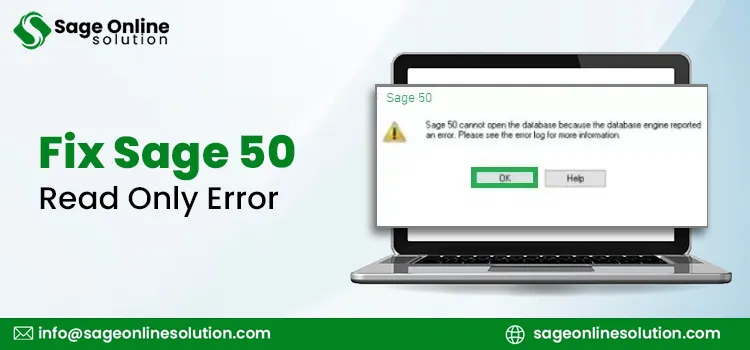
You might also see a direct message saying Sage 50 cannot open the database because some database files are read-only.
“Sage 50 Accounting can’t open the database because some of the files are read-only”
Either way, the result is the same.
This is one of the most common issues Sage 50 users run into, and the good news is that it’s almost always fixable on your own, without needing to restore from a backup or call in a specialist. Below, you’ll find a clear explanation of why this happens and a step-by-step path to resolving it.
When Sage 50 says your files are read-only, it means the software can see your company data but doesn’t have permission to write to it or modify it. Your accounting data is stored in two key parts: a file with a .SAI extension and a folder with a .SAJ extension (it usually has a small gear icon). When either of these is locked down, blocked, or treated as off-limits by Windows, Sage 50 has no choice but to open your file in a view-only state.
You’ll know this is happening because you’ll find that you can open reports and look at past transactions, but options like saving, posting, importing, or editing are greyed out or throw an error when you try to use them.
Before jumping into fixes, it helps to understand what gives way to the read only error in Sage 50. A few of the most frequent causes include:
Once you know the likely cause for Sage 50 read only error, the fix is usually quick. Here’s how to work through it.
Step 1: Close Everything and Try Again
Let us start with a simple step.
Sometimes a stuck background process is the only thing causing the issue, and this alone resolves it.
Step 2: Check and Remove the Read-Only Attribute
This is the most common fix, and it’s worth doing carefully since you need to apply it to both parts of your data.
Once both are updated, try opening your company file in Sage 50 again.
Step 3: Check for File Encryption
If unchecking the read-only attribute didn’t help, encryption could be the real issue. A quick way to tell is by looking at your file names in File Explorer. If they appear in green text rather than the standard black, Windows has encrypted them, and that’s likely blocking Sage 50 from accessing them properly.
To fix this:
After this, restart Sage 50 and check whether the file opens normally.
Step 4: Move Your Data to a More Reliable Location
Where your company file lives matters more than most people realize. Storing your data on removable media like a CD or DVD, on a restricted network share, or inside a cloud-sync folder that hasn’t fully downloaded its files can all lead to read-only behavior, since Sage 50 needs consistent, direct access to those files.
The safest and most reliable location is a folder on your local C: drive. To move your data:
If you’re working on a network and multiple people need access, make sure everyone is pointing to the same shared folder and that the network connection is stable, rather than each person working from a separately synced copy.
Step 5: Review Folder and User Permissions
If your files still won’t open properly, the issue might come down to Windows permissions rather than the files themselves.
This ensures your Windows account, not just Sage 50 application, has the rights it needs to read and write to that folder.
Step 6: Run Sage 50 as an Administrator
Even with the right folder permissions, Sage 50 itself sometimes needs an extra nudge to get full access.
This step alone resolves the issue for a good number of users, particularly on Windows 10 and Windows 11 systems with stricter default security settings.
Step 7: Temporarily Check Your Antivirus Software
Some antivirus and security programs are overly cautious and block applications like Sage 50 from making changes to files they don’t recognize. If you’ve tried everything above and you’re still stuck, temporarily disable your antivirus software and attempt to open your company file again.
If that works, you’ll know your antivirus settings need an exception added for Sage 50 and its data folder. Be sure to turn your antivirus protection back on once you’ve confirmed this.
Step 8: Confirm Your Subscription Is Active
If you’re using a subscription-based version of Sage 50, an expired subscription can lead to a read-only state on its own, separate from any file or permission issue. In this mode, you’ll be able to view data and print certain things, but most editing, importing, and reporting functions will be locked.
If this applies to you, check your subscription status and renew it if needed, then reopen your company file.
Step 9: Test With the Sample Company
If none of the steps above resolve the issue, it’s worth isolating whether the problem is with your specific company file or with Sage 50 and Windows more broadly. Open Sage 50 and try loading the built-in Sample Company.
If you get the same read-only behavior with the sample file, the issue likely sits with your Windows installation or your .NET Framework setup, and you may need IT support to look deeper into your system. If the sample company opens just fine, the problem is isolated to your specific company file or its location, and you can revisit the steps above with that in mind.
Sage 50 read only error is not a sign of serious data damage. More often, it is about a file attribute, a permissions setting, or a storage location that needs adjustment. Work through the solutions in this article in order, starting with the simplest fixes. This will get you back to full access in majority of cases. If you do end up needing a backup restore at any point, always restore into a brand-new folder on your local drive rather than overwriting your existing data, just to keep a clean copy on hand.
In case you need assistance troubleshooting Sage 50 read only error or have a query, you can connect with a live Sage 50 expert at +1-844-341-4437.
Also Read:
Fix Sage 50 Pervasive Error 3012

Jul 03, 2026
Jun 30, 2026
Jun 18, 2026
Jun 15, 2026
Jun 01, 2026
© Copyright 2026 Sage Online Solution | All Rights Reserved
US
UK

