How To Export Sage 100 Data To Excel?

By Antonio Garcia May 05, 2026 9 min

Export Sage 100 Data To Excel

Managing business data inside Sage 100 is useful, but real flexibility comes when you can work with it outside the system. That’s where exporting Sage 100 data to Excel becomes essential. It allows you to analyze, organize, and share data without limitations.

Whether you’re handling reports or raw data, exporting gives you better control and visibility. If you want a smooth, error-free process without technical hassle, consider reaching out to professionals +1-844-341-4437 for reliable assistance.

Why Businesses Need To Export Sage 100 Data Into Excel?

Working within Sage 100 is efficient, but it has limits when it comes to deep analysis and customization. That’s why many businesses opt to export Sage 100 data into Excel for better flexibility and control.

  • Better data analysis: You will be able to perform functions like sort, filter, and formula application on your data in Excel to discover trends and information that cannot be noticed using Sage reports alone.
  • Improved reporting flexibility: After exporting, one is able to design his/her own reports by eliminating unnecessary elements and creating a report tailored for clients or internal use.
  • Handling large data sets easily: Sage grid and reports might have limitations due to the amount of data in view when viewing data in columns.
  • Data sharing across teams: Excel files are easy to share across departments, which makes the process of collaboration smoother without requiring Sage access.
  • Combining multiple data sources: After extracting the data, it can be consolidated with other data sources and used to generate useful reports.

Methods To Export Data From Sage 100

Before we jump into steps, it’s important to understand the different ways available for how to export data from Sage 100 to Excel. Sage 100 offers more than one method, and the right one depends on what kind of data you need.

1. Built-in Export from Data Grids

  • It works directly from screens like Customer Maintenance or the Invoice History.
  • With this you can export visible grid data instantly.
  • It is best for quick access without the need of creation of any reports.
  • Requires minimal setup and no technical knowledge.

2. Export Through Reports

  • It uses predefined reports inside Sage 100.
  • Format is maintained, including totals, headers, and groups.
  • It is considered best suited for preparing financial statements and audit purposes.
  • Usually used when users need to export reports from Sage 100 for presentations.

3. Using ODBC or External Tools

  • It connects Sage 100 data directly with Excel using ODBC.
  • Allows for real time data extraction and automation.
  • Suitable for large datasets or recurring reports.
  • Often part of a broader Sage 100 Excel integration setup, and used in setups involving Sage 100 ODBC export.

4. Visual Integrator (VI) Export

  • VI helps export specific fields based on defined jobs.
  • Considered useful for repeated data transfers.
  • Gives more control compared to standard export.

How To Export Sage 100 Data To Excel?

If you’re looking for a practical approach to export Sage 100 data to Excel, the built-in export feature is the simplest place to start. Below is a clear walk-through based on how the system actually works.

Step 1: Open the Relevant Module

  • Open Sage 100 and go to the module from where you would like to export data. Eg. Accounts Receivable > Customer Maintenance.
  • Open the screen that displays your data in grid format.

Step 2: Locate the Data Grid

  • Make sure that the data is available in tabular format.
  • If not adjust the columns as per requirements to display data in the tabular format.
  • Apply filters if you want specific records.

Step 3: Use the Export Option

  • Look for the Export button or icon, usually at the top of the grid.
  • Click on it to open export options.

Step 4: Select File Format

  • Choose Microsoft Excel Workbook (.xlsx).
  • In some versions, you may also see CSV as an option.
  • But select Excel for better formatting and usability.

Step 5: Choose Save Location

  • Select where you want the file to be saved, and rename the file if needed for easier identification.

Step 6: Complete the Export

  • Click OK or Export.
  • Open the file in Excel to verify the data.

Important Tips To Remember During Export

  • Always review column headers before exporting.
  • Remove unnecessary fields to keep the file clean.
  • Check numeric fields after export to avoid formatting issues.

This process is the most direct answer to “How to export data from Sage 100 to Excel?”, especially for users who need quick results without creating reports.

If you’re dealing with complex datasets or facing export errors, Sage experts +1-844-341-4437 can streamline the process and make sure your exported data is accurate and ready to use.

How To Export Sage 100 Report To Excel?

When working with structured financial or operational data, many users prefer reports instead of raw grids. This is where exporting Sage 100 reports to Excel becomes very useful, as it keeps the layout and totals intact.

Step 1: Open the Reports Module

  • Launch Sage 100, and go to the relevant module. Eg. General Ledger > Reports > Trial Balance.
  • Now, select the report you want to export.

Step 2: Preview the Report

  • Click Preview instead of Print, this’ll open the report in a preview window.
  • Review the data to check for accuracy before exporting.

Step 3: Access Export Options

  • In the preview window, look for the Export icon, and click on it to open format options.

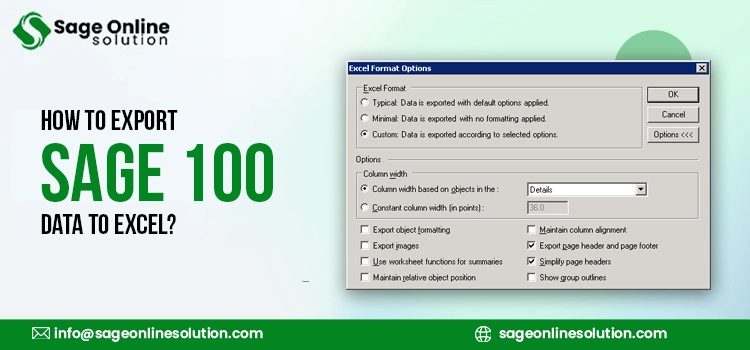
Step 4: Choose Excel Format

  • Select Microsoft Excel (Data Only) or Microsoft Excel (Formatted).

◦ Data Only is cleaner, and is better for analysis.
◦ Formatted on the other hand keeps layout and design.

Step 5: Save the File

  • Choose your destination folder, rename the file if needed, and click OK to complete the export.

Using Crystal Reports: Advanced Reporting

Some Sage 100 reports are built on Crystal Reports, which adds more flexibility.

  • It basically allows custom layouts and fields.
  • Supports detailed financial formatting.
  • Makes it easier to export Sage 100 reports to Excel with precision.
  • Commonly used for invoices, financial statements, and audit reports.

Some Key Points To Consider While Exporting Reports

  • Choose the right format depending on your goal.
  • Check the totals and formulas after the export is done.
  • Avoid exporting unnecessary sections to keep files manageable.

If you’re unsure “How to Export Sage 100 Report to Excel?” for complex financial reports, expert Sage guidance +1-844-341-4437 can help avoid formatting errors and missing data.

Using Advanced Options For Export: ODBC And Excel Integration

For businesses that need more control or automation, basic export methods may not be enough. This is where advanced tools come in, especially when planning “How to Export Sage 100 data into Microsoft Excel?” in a more dynamic way.

1. ODBC (Open Database Connectivity)

ODBC allows Excel to connect directly to Sage 100 data tables.

  • Set up an ODBC connection using Sage 100 driver.
  • Open Excel, go to Data > Get Data > From ODBC.
  • Select Sage database, the required tables, and then load data directly into Excel.

2. Excel Integration for Automated Reporting

  • It allows for refreshing reports without requiring duplicate exports.
  • It can be used to develop real time financial dashboards.
  • Popular in companies that require frequent reporting periods.
  • Often part of Sage 100 financial report export strategies.

These advanced approaches are powerful but require proper setup. If done incorrectly, they can lead to data inconsistencies or connection errors. That’s why many businesses rely on Sage experts to configure and manage these integrations. Get in touch with them +1-844-341-4437 now!

Common Issues While Exporting Data From Sage 100 To Excel And How To Fix Them

Even though the process to export Sage 100 data to Excel is kind of easy, users can still face issues that impact accuracy and usability. Below are mentioned the most common problems and how to fix them:

  • Formatting errors in Excel: Numbers may appear as text or dates may look incorrect. Fix this by using Excel’s Format Cells option and adjusting number or date formats as needed.
  • Missing or incomplete data: This occurs if the filters or some columns are missing. Make sure you clear the filters and ensure that all fields appear in the worksheet before exporting.
  • Permission-related restrictions: In case the export button is not appearing in the ribbon, you need to check whether the user has permission to do so.
  • File compatibility issues: The exported files may not open due to incorrect format settings. It is important that you always save your file in the .xlsx format and also keep Excel updated.
  • Performance issues with large data: Large exports can slow down or fail. To avoid this, export data in smaller sets or use advanced methods like ODBC for better handling.

Exporting data from Sage 100 into Excel gives businesses the flexibility to analyze, customize, and share information more effectively.

By understanding methods, avoiding common issues, and applying best practices, you can make the most of this process. If you want a seamless and error-free way to export Sage 100 data to Excel, connecting with experts +1-844-341-4437 can help you get it done efficiently and accurately.

You May Also Read:

How To Create Custom Report In Sage?

Frequently Asked Questions

How To Export Data From Sage 100 To Excel?

Exporting data from Sage 100 to Excel involves opening the Sage module, navigating to the grid with your data, and selecting the Export function. Select the Excel file format (.xlsx), specify the destination folder, and finish the exporting process.

Can I Automatically Export Sage 100 Data To Excel?

Yes, it is possible to do it automatically using ODBC connections or Visual Integrator. These methods allow scheduled or refreshable exports, reducing manual effort when you frequently export Sage 100 data to Excel.

What Is The Best Way To Export Sage 100 Report To Excel?

The best way to export Sage 100 reports is simply through the report preview window. Use the Export option and select either formatted or data only Excel output based on your reporting needs.

Why Does My Sage 100 Export Not Format Correctly In Excel?

Formatting issues usually happen due to data type mismatches or report settings. After you export data into Excel, there are chances that you might need to adjust formats like dates, numbers, or text directly within Excel.

Is There A Difference Between Exporting Data And Reports In Sage 100?

Yes, exporting data pulls raw records from grids, while reports include structured layouts with totals. Knowing how to Export Sage 100 Report to Excel helps when you need formatted outputs instead of raw datasets.

About The Author

Antonio Garcia

Antonio Garcia

Antonio Garcia writes for Sage Online Solution and helps businesses manage their financial books more effectively. He offers practical advice and solutions that simplify accounting software use, so companies handle their finances with ease and accuracy. With years of experience, Antonio understands what businesses need to succeed. He aims to make accounting less stressful for everyone.

