By Antonio Garcia Apr 23, 2026 9 min
Managing clean and reliable data is critical for any business using Sage. Data Validation Report in Sage 100 plays a key role in identifying errors, inconsistencies, and missing links within your system.
It helps ensure that your financial and operational data stays accurate and usable. And by the time you end reading this guide, you’ll be an expert on how to actually perform it like a perfectionist.
Although, if you’re facing data inconsistencies or system errors, it’s best to get expert support, so connect with the best professionals at +1-844-341-4437 for fast and reliable assistance.
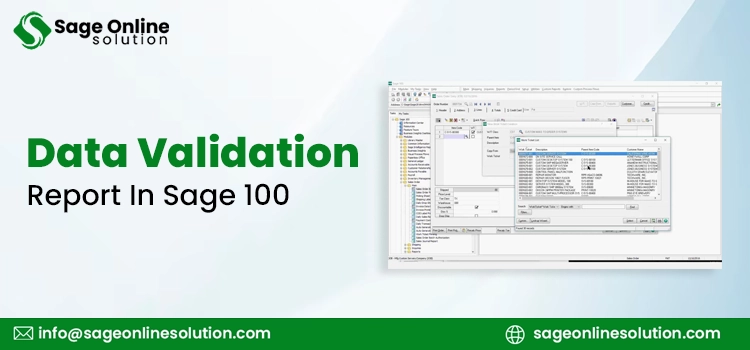
So, initially, one needs to be aware of the Data Validation Report in Sage 100, which is a built-in utility meant to analyze inconsistencies within the data of a company.
In short, running a Data Validation Report in Sage 100 regularly helps you catch issues early, maintain system stability, and ensure your reports reflect the true state of your business.
This section explains how to run a Data Validation Report in Sage 100c in a clear, practical way. Before proceeding, see that you are signed in to the right company and have the appropriate rights.
1. First, open Sage 100c: Launch the system and log in with your user credentials. Make sure you are in the correct company database.
2. Go to the Library Master Module: From the main dashboard, navigate to Library Master. This module contains utilities used for system-wide checks and maintenance.
3. Click on Utilities: Inside Library Master, locate and select the Utilities menu. This is where most system-level tools are stored.
4. Select Data File Display and Maintenance: This option lets you review and interact with system data files directly.
5. Choose the Data Validation Option: Within the available utilities, select the validation-related function that allows you to scan and verify data integrity.
6. Select the Module or File to Validate: You may select certain modules such as General Ledger, Accounts Payable, or Inventory. This will enable you to focus your validation efforts on these modules.
7. Click Proceed or Run: Start the process, and let the system scan records and generate a validation output report.
8. Review the Generated Report: Once completed, results will display errors, warnings, and data inconsistencies. These results help you decide the next steps.
If you’re working in cloud or subscription versions, the process to run Data Validation Report in Sage 100c remains largely the same, with only minor UI differences.
Once the report is generated, the next step is interpreting it correctly. Data Validation Report in Sage 100 provides a detailed breakdown of issues found during the scan. These results are typically categorized into errors and warnings.
In many cases, the report will include references or links to help you locate the exact record causing the issue. This makes troubleshooting more efficient and reduces guesswork.
This is why regularly reviewing Data Validation Report in Sage 100 is essential for maintaining reliable outputs.
Using a Data Validation Report in Sage 100 is not only about fixing the errors, but it’s also about keeping your entire system reliable and consistent.
Knowing when to run a Data Validation Report is just as important as knowing how to use it.
Whether it’s routine maintenance or a critical checkpoint, making it a habit to run Data Validation Report keeps your Sage 100 system clean, stable, and reliable.
When you review the validation output, certain issues tend to appear more frequently than others. The Operation Management Data Validation Report is especially useful for identifying these recurring problems across modules.
These issues highlight why regularly running a Data Validation Report in Sage 100 is essential.
You should consider professional help when dealing with corrupted data or system-level inconsistencies. If your Data Validation Report in Sage 100 continues to show unresolved errors, it’s best to get expert support. Connect with the specialists +1-844-341-4437 to ensure your reports stay fully optimized.
While the Data Validation Report in Sage 100c helps identify issues, following the right practices can prevent many of them from happening in the first place.
By combining these practices with consistent use of Data Validation Report in Sage 100, you can maintain a stable, accurate, and reliable system over time.
Keeping your Sage system clean and reliable requires consistent monitoring and proactive action. The Data Validation Report in Sage 100 helps you identify hidden errors, maintain data accuracy, and ensure smooth system performance.
If challenges persist or errors become complex, don’t hesitate to seek expert help, reach out +1-844-341-4437 professionals for dependable Sage 100 support and long-term system stability.
Frequently Asked Questions
Data Validation Report in Sage 100 utility is used to search for any errors, gaps, or inconsistencies within the data on the computer system. All this data should be structured correctly.
To run Data Validation Report, navigate to Library Master, access Utilities, and select the validation option for the required module. This process helps to verify data integrity.
Data Validation Report in Sage 100 identifies problems like missing data, improper data formatting, and disconnected files. Errors and warnings are shown in cases where errors prevent any action from being taken, while warnings point to possible risks.
Running the Sage 100 data validation report is important because clean data allows Sage reporting tools to deliver reliable insights, reducing the risk of incorrect financial or operational outputs.
You should run a Data Validation Report regularly, especially before closing accounting periods, after system updates, or following unexpected shutdowns.

Apr 23, 2026
Mar 24, 2026
Mar 23, 2026
Mar 19, 2026
Mar 13, 2026
© Copyright 2026 Sage Online Solution | All Rights Reserved
US
UK

